Month: September 2005

  • Better way to enable services

    Sean who runs the nice looking but content-deprived Pepper Hacks website, offered up this tip:

    You can enable and disable services by using the

    initdconfig
    

    command. It behaves the same as the ‘chkconfig’ command for RedHat / Fedora Linux. Thanks Sean! So to enable the SSH server you just have to do:

    initdconfig ssh on
    

    at the root XTerm.

  • Site moooove…

    I’m migrating this site over to my home server today – it will probably get much slower until I find a better permanent place for it. DNS will switchover in 24 hours so there might be a blip where it’s offline.

  • USB to PS/2 Adapter: a good idea

    Since I pre-ordered my Pepper, I’ve been casually browsing around looking for some kind of small, wireless, full-size-ish keyboard to use with it. Don’t get me wrong, even though my thumbs are huge, I am getting used to and quickly learning the layout of the thumb-pads, but for more serious text input I knew that something larger would be needed.

    Since the Pepper has built-in Bluetooth I’ve been looking at those, but the only ones that seem to exist are either the Apple Wireless Bluetooth keyboards, which are more or less full-size, or foldable types for use with PDAs. I wouldn’t buy either without trying them out first, as I can be quite picky when it comes to keyboards — my favourite of all time is the IBM Model M. But in the meantime there’s a really quick, easy, and cheap way to hook up an external keyboard or mouse to your Pad: a USB to PS/2 keyboard/mouse adapter! These can be had in many places for around $10 to $15. They’re powered off of the USB bus, and converts any old PS/2 keyboard or mouse into a USB HID device. Sweet! I’ve got one plugged in right now with an IBM Extended Access II keyboard, works like a charm!

  • Getting stuff onto the Pad

    Unfortunately, right off the get-go I was having problems getting my music and video onto the pad (which is still without a name, and no, I’m not calling it Sgt. Pepper). I had initially planned on using my USB->CF card reader to put files onto it. Unfortunately, the Linux 2.4 kernel doesn’t get along with my card reader. Not Linux or Pepper’s fault – apparently my card reader just happens to be “quirky”. Considering it cost me net $0 I’m not too pissed.

    There’s also of course the Pepper Desktop software, which is supposed to let you sync the Pad’s contents with your desktop. But still no joy – I added files into the Music Library on the Desktop and followed all the instructions to start a sync, but it died at Step 4. Looking into the log files, there’s something rotten going on on the Desktop’s side I think. I sure as hell hope it isn’t Norton AntiVirus doing something bad, but I suspect something’s just broken. No joy!

    Next, I thought “I know! I have this external USB hard drive with backups of all my music and video on it – I’ll just plug it into the USB port and awaaay we go!” Which should have worked. But didn’t, even after I converted the drive to FAT32. The reason? Pepper assumes that any USB device will have only one partition, sda1. Well… in order to have a 186GB FAT32 partition, it has to be within an extended partition – meaning it showed up on sda5. But even trying to mount it manually failed, which was strange to me – something just doesn’t want to read an extended partition table or something?

    Finally I hacked me a solution. Samba (the Windows File Sharing client for UNIXes) is installed and works just fine on the Pepper. I suspect it will be integrated into the software soon, but all I needed to do was mount my SMB share into /media/usbhd (where Pepper expects a USB disk to be mounted) and Eureka! It worked.

    I’m really hoping to solve this sync problem soon, because it’s by far the most elegant way to be doing things.
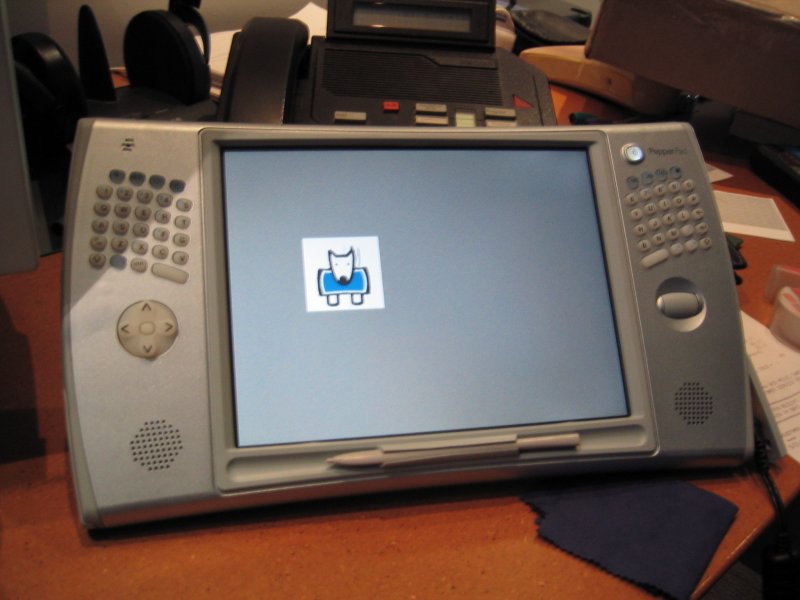
  • FCC gives up the insides

    Photos of the inside of Pepper, so I don’t have to take mine apart!

    Images in PDF file

  • Ohh, the extreme irony…

    My Pepper Pad was shipped from Canada (where it is assembled), to the USA, and back to Canada.

    Canada Customs is making lots of money off of this transaction.

  • Hacking Pepper’s Linux (setting up SSH)

    Yes, it’s here.

    And since there’s virtually zero third-party information about this thing on the net, expect this category of my site to get very busy, very soon.

    I got the Pepper Pad for two reasons:

    • Easy-to-use , portable web browsing throughout my home
    • Makes a decent portable video player too
    • Has full Linux distro, meaning can be hacked to your heart’s content, which for me means run lots of emulators

    So after about 15 minutes, I’ve got sshd running so I can at least login to it remotely and not have to use the xterm with the thumb-board.

    Here’s how to do it:

    • Open the xterm – press Ctrl-Shift-1.
    • Edit the /etc/sshdconfig file to allow remote root logins: vi /etc/ssh/sshdconfig
    • Find the line that says PermitRootLogin, and uncomment it (remove the # from the beginning of the line, put the cursor on it and hit x), then save (ZZ)
    • Assign a root password. Run ‘passwd’. SSH clients don’t seem to want to let me login as root with no password, for good reason 🙂
    • Start the ssh server: /etc/rc.d/init.d/ssh start
    • If you want the ssh server to start on every cold boot: ln -s /etc/rc.d/init.d/ssh /etc/rc.d/rc3.d/S89ssh
    • Now you can login remotely, run ‘ifconfig’ on the Pepper to find your IP address, then ssh to it as root from the other machine.
  • It’s here! It’s here!

    I knew it wasn’t vapourware. Shame on you, Jon!

  • GBA games to check out

    • Karnaaj Rally
    • Dr. Mario & Panel de Pon
    • Shifting Gears – Road Trip
    • Penny Racers
    • Guru Logic Champ
  • Where’s my Pepper?

    It’s officially been two months since I pre-ordered my Pepper Pad, and it’s supposed to ship any day now. Still no joy. I hate waiting for stuff to ship, especially when it’s really expensive and I’ve saved up for it for months and I really really want it to get here but it isn’t here and I get sick of griping about it and e-mailing customer support departments and argh.

    I wonder how the desktop syncing works… hrm, it seems to listen on UDP port 2112.